Pocket Landlord Build Your Town Controls & HUD Guide
Paint, place furniture, manage tenants, collect rent, and aim the camera on PC or mobile.
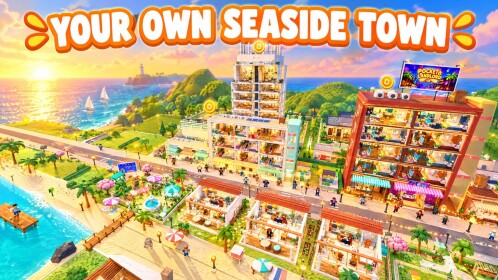
Learning the Pocket Landlord Build Your Town controls early saves hours of fumbling through menus while rent sits uncollected. UGDEVS packed a cozy Roblox landlord loop—paint walls, place furniture, welcome pet tenants, collect rent, then unlock neighbourhoods—into a HUD that works on both PC and mobile. This guide maps the common buttons, camera habits, and session workflows so you spend time decorating instead of hunting icons.
Pair this page with Getting Started for first-hour goals, Decorating for layout craft, Codes for the gift/redeem entry, and Tenants & Pets once units fill up.
Platform basics
Pocket Landlord runs inside Roblox, so movement uses the standard Roblox character controls. Landlord tools sit on top as UI panels and context buttons.
PC
- WASD or arrow keys move your avatar through apartments, streets, and destinations.
- Mouse looks around; scroll or the Roblox camera controls zoom for furniture placement.
- Click selects paint swatches, furniture pieces, tenant prompts, and rent claim buttons.
- Keyboard shortcuts may appear as tooltips after patches—hover icons once after every update.
Mobile / tablet
- On-screen joystick moves; drag the camera with a finger swipe.
- Tap HUD chips for paint, furniture, tenant, and rent panels.
- Pinch-to-zoom (when available) helps line up wall art and tight loft corners.
- Prefer landscape orientation for wider toolbars when decorating large villas.
If a button vanishes after a patch, reopen the main menu and scan shop, settings, and event banners before assuming it moved permanently.
Paint controls
Paint is usually the first tool you should master.
- Open the paint / surfaces entry from the HUD.
- Choose wall or floor mode when the UI splits those options.
- Select a colour or material swatch.
- Tap or click the surface to apply.
- Exit paint mode before shopping furniture so you do not recolor by accident.
Tips:
- Lock a palette before you buy five mismatched sofas—see Decorating.
- Recolor after a Prestige rebuild first; surfaces are cheaper mistakes than furniture stacks.
- Keep a calm bedroom palette and save neon accents for karaoke or cyber districts later.
Furniture placement controls
Furniture tools drive the cozy fantasy and the rent math.
- Open the furniture / build catalog.
- Filter by room type or set when filters exist.
- Preview the piece, confirm price, then place.
- Rotate and nudge until paths stay clear for tenants and pets.
- Confirm placement; delete or move only when the edit tool is active.
Quality-of-life habits:
- Place bed, seating, lighting, and storage before clutter.
- Leave walking lanes so dog, cat, and bunny tenants are not trapped—details in Tenants & Pets.
- Screenshot keeper layouts so Room 101 rebuilds after Prestige go faster.
- Instant Builder-style gamepasses (when owned) speed mass placement, but free play works fine—see Gamepasses.
Tenant and pet panels
Tenant UI is how you fill apartments and keep happiness high.
- Open the tenant menu to list units, invite occupants, or review needs.
- Check pet indicators when dogs, cats, or bunnies share a unit.
- Resolve warnings before you dump cash into cosmetics.
- Revisit after every expansion unlock; new neighbourhoods can shuffle where prompts appear.
A polished room with an ignored tenant still underperforms a modest room that stays occupied. Collect happiness info first, then decorate.
Rent collect controls
Rent is the heartbeat of Pocket Landlord.
- Find the rent / collect button or unit claim prompts on the HUD.
- Tour apartments on a rhythm instead of waiting until you are broke.
- Bank surplus before opening café, gym, karaoke, or destination tickets.
- After Prestige, relearn where collect prompts sit on the fresh Room 101 HUD.
Optional Auto Rentals-style passes change how hands-off collection feels, but they are never required. Manual collection teaches which rooms actually print—pair with Make Money.
Codes and gift menu
When UGDEVS drops promos, redemption usually lives behind a Codes, Gift, or social-linked button.
- Load into the experience and finish onboarding if new.
- Open the codes/gift entry from the main HUD or shop panel.
- Type strings exactly—case and spaces matter.
- Confirm, then check cash, crates, or boosts.
There may be no active codes on a given day. Verify strings on the Codes hub and the UGDEVS group before trusting random video descriptions. Never download third-party “redeemers.”
Camera tips that improve builds
Good camera work is a soft control skill:
- Pull back for villa exteriors and neighbourhood skyline checks.
- Push in for bedside tables, pet corners, and wall art alignment.
- Orbit around a room before confirming furniture so you catch clipping.
- Top-down glances (when the camera allows) reveal blocked doorways.
- On mobile, pause movement while fine-placing; jittery thumbs mis-drop chairs.
When friends tour on six-player servers, stand where guests spawn and pan the route you want them to walk—SlideCity and Waterpark destinations look better with intentional camera paths.
Session workflow using the HUD
A clean 20-minute loop:
- Collect rent.
- Open tenant panel; fix one happiness issue.
- Enter paint if a room still looks unfinished.
- Place one high-value furniture upgrade.
- Peek codes/gift only if an event banner is live.
- Adjust camera, screenshot, log off or expand.
Longer sessions can add neighbourhood travel, business checks, or Prestige planning—but keep the same HUD order so you never skip income.
Common control mistakes
- Decorating for twenty minutes without collecting rent.
- Leaving paint mode on and recoloring floors by accident.
- Blocking doorways with oversized furniture.
- Ignoring tenant alerts while hunting cosmetics.
- Prestiging mid-catalog with unpaid carts open.
- Chasing scripts instead of learning the legit HUD—see Scripts only for safety context.
Related reading
Master Pocket Landlord controls once and every Prestige rebuild feels shorter. The HUD is your landlord office: paint, furnish, care for tenants, collect rent, redeem gifts when they exist, and aim the camera like you are already filming the town tour.
Frequently Asked Questions
Quick answers about codes, prestige, rent, and town building.
Where is the paint tool in Pocket Landlord?
Open the paint or surfaces entry on the main HUD, pick wall or floor mode, choose a swatch, then tap the surface. Exit paint mode before placing furniture.
How do I collect rent on PC and mobile?
Use the rent/collect button or unit claim prompts on the HUD. Tour rooms on a rhythm so cash funds the next upgrade instead of sitting unclaimed.
Where do I redeem codes?
Look for a Codes, Gift, or social-linked menu on the HUD or shop panel. Enter the string exactly, then confirm. Check the Codes hub for live status.
Do I need gamepasses to use the controls?
No. Paint, furniture, tenants, and rent work without Robux passes. Instant Builder or Auto Rentals only speed optional workflows.
Any camera tip for decorating lofts?
Orbit the full loft, then push in for detail placement. Leave clear walking lanes so pet tenants are not blocked by furniture.